
What equipment do you need for online music lessons?
You don't need a recording studio. We explain which gear actually makes a difference in an online lesson and how to set up the audio so your instrument sounds the way it really does.
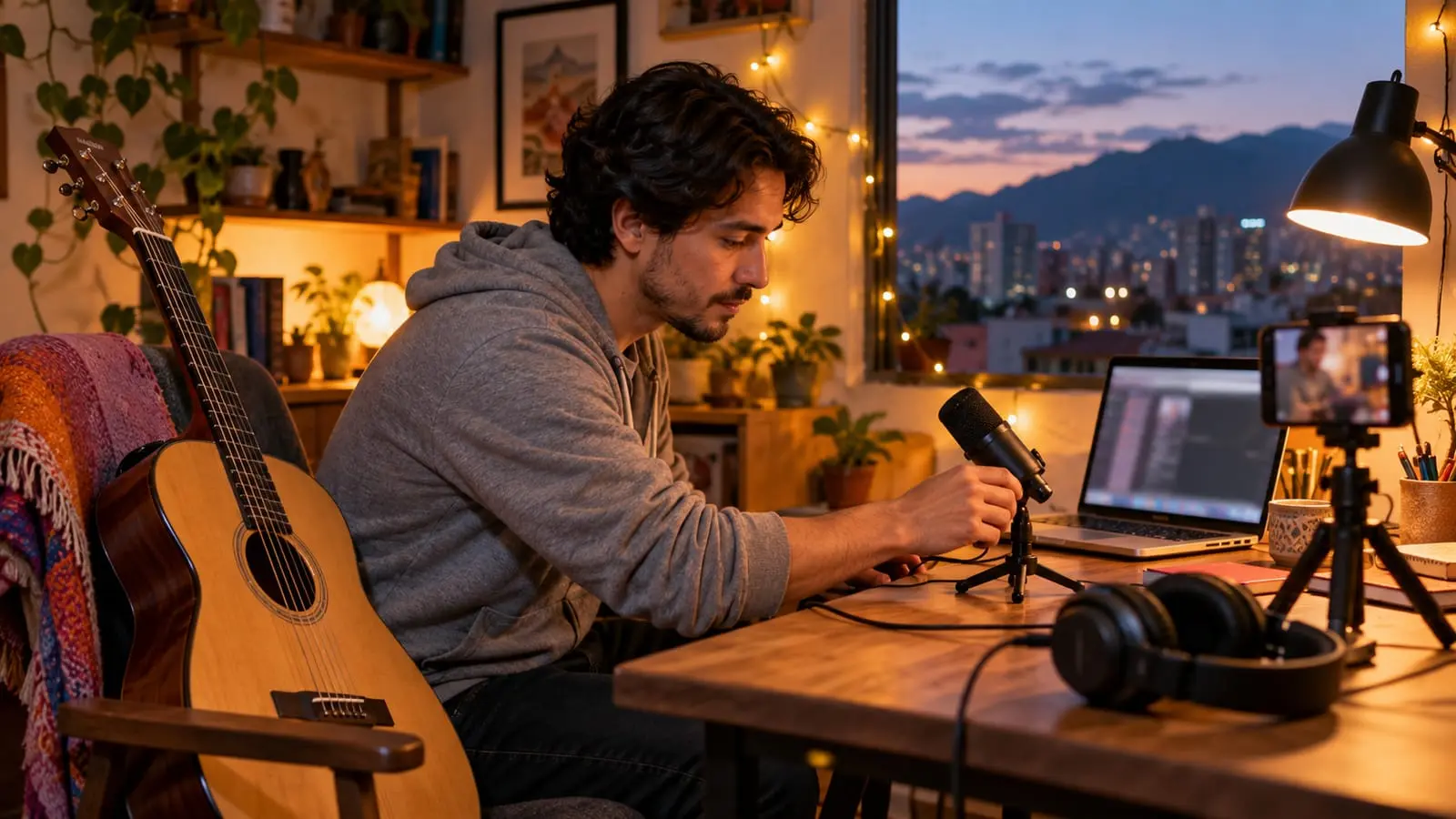
To get started, all you need is a phone, tablet or computer with a camera, a stand to position it and a stable connection. The biggest improvement comes from setting up the audio properly rather than buying expensive equipment: turn off noise suppression on the video call and enable original sound mode, if the app offers it. After that, the most noticeable upgrades are wired headphones and an external microphone.
This guide focuses on equipment and setup. For lighting, camera placement and your music stand, see how to prepare your space for online lessons; if you are still choosing a format, start with in-home or online lessons.
In short
- The essentials: a device with a camera, a secure stand, a stable connection and the charger plugged in.
- Video call noise filters are designed for speech and cut off sustained notes, quiet sounds and the beginnings of phrases.
- Wired headphones prevent echo without adding the delay that many wireless headphones introduce.
- A basic external microphone helps most with singing and wind instruments; for piano and guitar, the device microphone is usually enough at first.
- Upload speed matters most, because it carries your sound and video to your teacher.
The essentials for getting started (and what to upgrade later)
- A device with a camera and microphone: phone, tablet or computer.
- A stand: a tripod, desk stand or music stand with an adapter. Your camera needs something more reliable than a stack of books.
- A stable connection, ideally wired or close to the router.
- The charger plugged in: a video call with the camera on drains the battery quickly, and an overheating phone may reduce video quality.
That is enough to take piano, guitar or theory lessons. Everything else is an upgrade, best made in this order:
| Priority | Improvement | What it solves |
|---|---|---|
| 1 | Set up the video call audio | Lets your teacher hear your instrument fully, without dropouts. It costs nothing. |
| 2 | Tripod or adjustable stand | Positions the camera where your teacher needs it for your instrument. |
| 3 | Wired headphones | Echo, feedback squeals and audio cutting out when you both speak. |
| 4 | External microphone | Clarity and nuance, especially for singing and wind instruments. |
| 5 | Ethernet cable or better router placement | Dropouts, frozen video and choppy audio. |
| 6 | A second device as a camera | An extra angle: your feet at the piano or drums, or a close-up of your embouchure. |
Phone, tablet or computer?
| Device | Benefits | Cons |
|---|---|---|
| Phone | Good camera; easy to position on a tripod at any angle. | Small screen for watching your teacher demonstrate; notifications and calls can interrupt. |
| Tablet | Larger screen, lightweight and easy to rest on a music stand. | The camera is often more basic; needs a sturdy stand. |
| Laptop | Large screen, convenient for shared sheet music and theory. | The camera is fixed to the screen; side views or overhead angles are hard to achieve. |
| Desktop computer | Stable; supports external microphones and cameras. | Hard to move: you need to position the instrument around it. |
For many students, the best combination is a computer or tablet in front of you to see and hear your teacher, with a phone on a tripod as a second camera. Join the same video call on the phone with its microphone muted and volume set to zero; otherwise, you will get echo or feedback.
Microphones: when an external one is worth it
A phone or laptop microphone is designed to pick up speech at close range. It does a reasonable job with piano and guitar, but struggles with very quiet or very loud sounds. Here is how your needs vary by instrument:
- Singing: this is where an external microphone makes the biggest difference. A USB microphone connected to your computer captures tone and nuance better. Place it one or two hand spans from your mouth, slightly below it, so consonant bursts do not hit it directly.
- Wind instruments: do not point the microphone straight at the bell; place it at an angle and a little farther away to prevent clipping. For flute, avoid placing it in front of the embouchure hole, where it will pick up the air stream.
- Acoustic piano: the device microphone, placed to one side of the instrument, is usually enough. Some digital pianos can send audio straight to the computer through a cable, producing a much cleaner sound.
- Electric guitar and bass: an audio interface sends the sound straight to your computer instead of using a microphone to capture the amplifier.
- Drums and percussion: the problem is excessive volume, not a lack of sensitivity. Move the microphone farther away and lower its input level so the hits do not distort.
If you also want to record yourself or practice with backing tracks, how to choose a microphone for singing at home goes into more detail about microphone types and interfaces.
Headphones: why they help and which to use
Without headphones, your teacher's sound comes out of your speaker, goes back into your microphone and the app tries to cancel it. That process often cuts out parts of your instrument too, which is why your teacher may hear you in fragments just when they speak or when you both make sound at once.
- Wired is better than wireless. Many wireless headphones add delay on top of the call's latency.
- For singing, use just one earbud or headphones that leave your ears open, so you can hear your voice naturally. With both ears covered, it is common to sing out of tune or push your voice.
- For violin and viola, large over-ear headphones get in the way of the chin rest; small earbuds work better.
- For piano and guitar, almost any wired headphones will work.
- For drums, ordinary headphones do not replace hearing protection: the drum kit is still loud.
If you prefer not to use them, lower the speaker volume and ask your teacher not to speak while you play. Since online lessons involve taking turns, this reduces the problem considerably.
How to set up video call audio
This is the most important improvement, and it costs nothing. Video call apps use filters designed for meetings: they suppress background noise, level out volume and cancel echo. With music, these filters mistake sustained notes for noise, cut off phrase endings and flatten dynamics.
Names vary by app and version, but the steps are usually similar:
- Open the app's audio settings before the lesson, not during it.
- Find the noise or background noise suppression option and set it to the lowest level or turn it off.
- Turn off automatic microphone volume adjustment, if available, and set the level manually: your loudest passages should not reach the maximum.
- Look for a mode called original sound, audio for musicians or high fidelity, and enable it. Some apps also require you to switch it on within the call using an on-screen button.
- If your phone has its own microphone mode, such as voice isolation, switch it to standard mode during the lesson.
- Test it with your teacher: play something very quietly, something loudly and a sustained note, then ask whether they heard all of it.
Your connection: what really matters
- Upload speed matters more than download speed, because it carries your audio and video. Many speed tests display it separately.
- An Ethernet cable is more stable than Wi-Fi. If that is not an option, move closer to the router or avoid thick walls between you and it.
- Pause downloads and automatic updates, and close video tabs during the lesson.
- If the connection struggles, turn off your video briefly: audio uses much less bandwidth, so the lesson can continue while the connection stabilizes.
- Agree with your teacher on what to do if the call drops: wait a few minutes, reconnect through another app or continue with audio only.
If you will be taking online music lessons regularly, it is worth spending an afternoon getting everything ready. Once it is set up, you just need to connect and play.
Frequently asked questions
Do wireless headphones work for online music lessons?
They work for listening to instructions, but many add delay on top of the call's latency, and their built-in microphone is usually inadequate for an instrument. If you can, use wired headphones with the device microphone or an external one.
Is a phone or a computer better for an online lesson?
A computer or tablet is more comfortable for seeing your teacher and shared sheet music clearly; a phone is more practical for positioning the camera at the angle your instrument needs. Using both at once is often the best solution.
What is original sound on a video call?
It is a mode that disables filters designed for speech, such as noise suppression and automatic volume control, so the music comes through as close to its actual sound as possible. Not every app offers it or uses the same name.
Do I need an audio interface for my online lessons?
Not to get started. An interface is useful if you play electric guitar or bass, use a professional wired microphone or also want to make good-quality recordings. For most lessons, a USB microphone or the device microphone is enough.
Sources
We checked the facts in this article against these sources on October 22, 2026.